














Two Monitor Setup Guide: Desk Space, Mounting, and Alignment
A well-planned two-monitor setup gives you more room to work, play, stream, and manage multiple tasks without constantly switching between windows. But adding a second screen also introduces practical challenges: finding enough desk space, choosing a compatible monitor mount, positioning both displays comfortably, and keeping cables organised.
The right setup depends on your monitor sizes, how you use each screen, your available desk space, and whether you work sitting down, standing up, or both. This guide explains how to plan your dual monitor setup, choose the right mounting solution, align your screens, and create a cleaner workspace.
5 Key Takeaways
Desk space: Measure your monitors and equipment before choosing a desk. Two 27-inch displays may fit on a desk around 55–60 inches wide, but your actual requirements will vary.
Monitor mounting: A dual monitor arm can free up desk space and simplify adjustments. Check VESA compatibility, monitor weight, and desk-clamp requirements before buying.
Screen positioning: Place your primary monitor directly in front of you when one screen handles most of your work. Adjust the secondary display to minimise unnecessary head movement.
Cable management: Plan cable routes with your desk at its highest position if you use a standing desk. Leave enough slack for the full range of movement.
Workspace planning: Consider desk dimensions, monitor placement, keyboard position, and chair height together rather than adjusting each component in isolation.
Why a Two Monitor Setup Changes Everything
A dual monitor setup allows you to keep two applications visible at once. You might use one screen for gaming and the other for streaming controls, chat, or system monitoring. For work, one display can hold your main document while the other shows research, spreadsheets, communication tools, or reference material.
However, adding a second screen does not automatically make a workspace more efficient. If the monitors take up too much room, sit at awkward angles, or force you to turn your head repeatedly, the arrangement may become inconvenient.
The goal is to create a layout that supports your usual tasks while leaving enough room for your keyboard, mouse, and other equipment.
Before choosing a desk or monitor arm, answer three questions:
1. How large are your monitors, and how will you arrange them?
2. Will you use both screens equally, or will one be your primary display?
3. Do you need space for additional equipment, such as speakers, a microphone, a laptop, or a gaming controller?
These answers will help determine the desk dimensions, mounting solution, and screen positions that suit your workspace.
How Much Desk Space Do You Need for Two Monitors?
Desk width and depth both matter when planning a dual monitor setup. Width determines whether the screens and other equipment fit side by side, while depth affects how far the monitors can sit from your eyes and how much room remains for your keyboard and mouse.
1. Estimate the Required Desk Width
Monitor sizes are measured diagonally, so two 27-inch monitors do not require just 54 inches of desk width. Their combined horizontal footprint depends on their aspect ratios, bezels, stands, and positioning.
As an initial planning guide:
| Monitor configuration | Suggested starting point | What to consider |
| Two 24-inch monitors | Measure the combined screen width and allow additional working space | Leave room for the keyboard, mouse, and other peripherals |
| Two 27-inch monitors | A desk around 55–60 inches wide may suit many side-by-side setups | Check the actual width of both displays and their stands |
| Two 32-inch monitors | Consider a wider desk, potentially around 60–72 inches | Account for the screens' combined footprint and your preferred viewing position |
| One landscape and one portrait monitor | Measure the arrangement after rotating the secondary display | Check the screen height, mount clearance, and available adjustment range |
These dimensions are starting points, not universal minimums. Some setups may need less space, while others require a wider surface because of large monitor stands, speakers, or additional equipment.
How to measure your setup:
1. Check the physical width of each monitor in its intended orientation.
2. Add the width of both screens and the gap between them.
3. Account for any space needed by monitor stands or mounting hardware.
4. Add room for your keyboard, mouse, and frequently used accessories.
5. Check that the displays will not interfere with nearby walls, shelves, or other equipment.
If you plan to use a monitor arm, measure the full range of movement rather than just the screens' resting positions.
2. Choose a Desk with Enough Depth
Desk depth affects monitor placement and the amount of working space available in front of the screens.
A depth of around 28–30 inches can be a useful starting point for many dual monitor setups. However, the right depth depends on your display size, viewing distance, stand or arm design, and how much room you need for your keyboard and mouse.
A shallow desk may leave you with limited space to position the screens comfortably. A deeper desk provides more flexibility, although you should still check that the monitors can be placed within a comfortable viewing distance.
Monitor arms can help by lifting monitor stands off the desktop. This creates more usable surface area, but the amount of space recovered depends on the original stands and the arm's mounting design.
3. Match the Desk to Your Equipment
Before buying a new desk, consider the complete setup rather than the monitors alone.
- Check whether the surface can accommodate:
- Both monitors and their mounting hardware.
- A keyboard and mouse with enough room for movement.
- Speakers, a microphone, a webcam, or a laptop.
- Charging accessories and other frequently used devices.
- Cable routing and any under-desk accessories.
If you use a height-adjustable desk, also consider the position of the cables and monitor arms throughout the desk's full movement range.
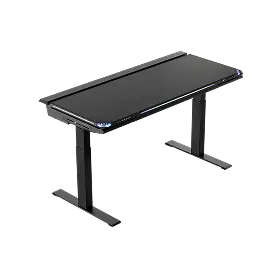
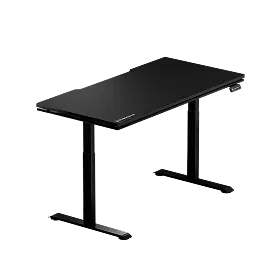
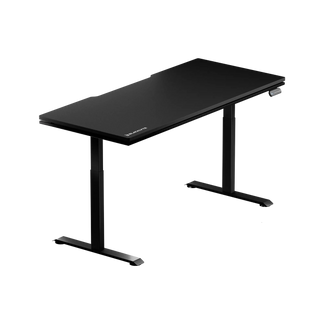
Blacklyte offers several desk options for different workspace requirements. The Atlas Desk has a 59.1 × 27.6-inch desktop, while the Atlas Lite Standing Desk comes in multiple sizes, including 55.1 × 31.5-inch, 63 × 31.5-inch, and 70.9 × 31.5-inch options. Check the current UK product listings for available configurations before choosing a size. The best option is the desk that fits your actual equipment, room dimensions, and working habits.
How to Choose a Dual Monitor Mount
A monitor mount affects desk space, screen positioning, and how easily you can adjust each display. The main options are standard monitor stands, two separate monitor arms, and a dual monitor arm.
Monitor Stands
The stands supplied with monitors are usually straightforward to install and do not require desk-clamp compatibility checks. However, their bases occupy desktop space, and their adjustment ranges vary. If two monitors have different stands, matching their positions may also take more effort. Stands can work well when you have enough desk space and do not need frequent adjustments.
Two Separate Monitor Arms
Using one arm for each monitor offers greater independent control over screen position and orientation.
This arrangement can be useful when:
- You use monitors of different sizes.
- One display is in landscape orientation and the other is in portrait.
- You need to adjust each screen independently.
- Your preferred layout changes regularly.
The trade-off is that two separate arms may require more installation space and more careful positioning.
A Dual Monitor Arm
A dual monitor arm supports two screens through a shared mounting system. Depending on the design, it can simplify adjustments and help create a more organised desk. It may be a suitable choice when you want two screens side by side and would prefer to keep their stands off the desktop.
Before buying, check:
| Specification | What to verify |
| Monitor size | Each screen falls within the mount's supported size range |
| Weight capacity | Each monitor's weight is supported by the relevant arm |
| VESA compatibility | The monitor's mounting pattern matches the arm |
| Desk compatibility | The desk thickness and structure suit the clamp or grommet mount |
| Adjustment range | The arm can reach your intended height, angle, and screen spacing |
| Clearance | The monitors can move without hitting a wall, shelf, or each other |
| Cable routing | The design accommodates your display and power cables |
Most standard VESA mounting patterns include 75 × 75 mm and 100 × 100 mm, but you should always confirm your monitor's specifications before purchasing a mount.
Is a Dual Monitor Arm Right for Your Setup?
Blacklyte's Atlas Dual Monitor Arm is designed for dual-screen arrangements and lists support for compatible 13–49-inch monitors, with a specified weight range of 2–20 kg. It also supports 75 × 75 mm and 100 × 100 mm VESA mounting patterns. Before purchasing, confirm that each monitor falls within the product's stated size and weight requirements. Also check the desk's thickness, the mounting method, and the available clearance behind the desk.
If you prefer to adjust each screen independently or have a more unusual arrangement, compare the available adjustment range with that of two separate monitor arms. The right choice depends on your equipment and preferred layout, not simply on which mount looks cleaner.
How to Position Two Monitors Correctly
Once your desk and mounting hardware are ready, focus on screen height, viewing distance, and horizontal positioning. There is no single arrangement that suits everyone. Your monitor sizes, eyesight, working posture, and the tasks you perform all affect the final position.
1. Set the Screen Height
For a typical seated workstation, start by positioning the top of the primary screen at or slightly below eye level. Adjust the display so you can read it comfortably without regularly tilting your head upward.
If you use a height-adjustable desk, reassess the monitor position when switching between sitting and standing. Your eye level changes with your working posture, so a setup that feels comfortable while seated may need adjustment when standing.
For two monitors, aim for a comfortable viewing position across both screens. Keeping their upper edges at a similar height can be helpful when practical, but do not force an exact alignment if it makes one screen difficult to view. Prioritise the position of your primary monitor and a neutral head posture.
2. Find a Comfortable Viewing Distance
A commonly used workstation reference is approximately 20–40 inches between the eyes and the screen. The appropriate distance depends on the monitor's size, text readability, and individual viewing needs.
Rather than treating a particular distance as mandatory, use these steps:
- Sit in your normal working position.
- Position the primary monitor so its content is easy to read.
- Adjust the distance until you can view the screen without leaning forward.
- Check that text remains readable at your preferred display scaling.
- Position the secondary monitor so you can view it comfortably without repeatedly leaning toward it.
Larger displays may need to sit farther away to make their full viewing area comfortable to use. Both screens do not need to be positioned at precisely the same distance in every configuration. However, avoid placing the secondary screen so far away that you must lean forward to read it.
3. Adjust the Horizontal Angle
The angle of each monitor depends on how the screens are arranged and how often you use them. For two similarly sized displays used side by side, angling them slightly inward can create a shallow arc around your viewing position. This can make it easier to look across both screens without turning your head as far.
Start with a small inward angle, then adjust based on comfort and visibility. There is no need to force both screens to a fixed angle. Pay particular attention to the secondary monitor. If you regularly need to turn your head substantially to read it, consider moving it closer to the primary screen or changing the overall layout.
Also check for reflections, glare, and differences in brightness. These can affect readability even when the physical positioning is otherwise suitable.
Which Two Monitor Layout Should You Choose?
Two common arrangements work well for different types of tasks: a symmetrical layout and a primary-secondary layout.
Symmetrical Layout: When Both Screens Matter Equally
If you use both monitors for roughly equal amounts of time, consider placing them side by side with the join between the screens near the centre of your working position.
This can suit tasks such as:
- Comparing documents or spreadsheets.
- Coding with reference material on a second display.
- Video editing and timeline management.
- Monitoring multiple dashboards.
- Working with applications that require frequent switching between screens.
Position your keyboard and mouse in relation to your overall working position, and adjust both displays so they are comfortable to view.
Primary-Secondary Layout: When One Screen Does Most of the Work
If one monitor handles your main task, place it directly in front of you. Position the secondary display to one side at an angle that allows you to check it comfortably.
This arrangement can suit:
- Gaming with chat or streaming tools on the second screen.
- Office work with email or messaging on a secondary display.
- Streaming with a dedicated control or monitoring screen.
- Research and writing with reference material on another display.
Keep your keyboard aligned with your primary monitor rather than automatically centring it between the two screens. If you switch between the screens frequently, adjust their positions so that neither requires excessive head movement.
Cable Management for a Clean, Safe Setup
A two monitor setup typically includes two power connections and two display connections, along with cables for peripherals such as webcams, speakers, microphones, or docking stations.
Without a plan, these cables can clutter the desk and become difficult to manage.
1. Plan Cable Routes Before Installation
Before securing any cables, decide where your PC, laptop, docking station, and power connections will sit. Keep frequently used connections accessible, and avoid routing cables across areas where they may interfere with your keyboard, mouse, or other equipment. Use cable clips, sleeves, or ties to keep related cables together. Leave enough room to disconnect or replace individual cables without dismantling the entire setup.
2. Allow for Standing Desk Movement
If you use a height-adjustable desk, cable length and routing require additional attention.
Before securing the cables:
- Position the desk and monitors as intended.
- Raise the desk to its highest setting.
- Check the cable route between the monitors, desk, and connected devices.
- Leave enough slack for the full movement range.
- Lower the desk and confirm that the cables do not catch, drag, or become trapped.
Repeat the check after making significant changes to the monitor position or cable arrangement. Do not allow cables to become taut when the desk moves. Excessive tension can stress connectors and interfere with normal desk operation.
3. Use the Desk's Cable Management Features
The Atlas Desk and Atlas Lite Standing Desk both offer integrated cable management features, but their specifications are not identical. The Atlas Desk includes an integrated power supply column and cable management tray. The Atlas Lite Standing Desk includes an integrated cable management tray. Check each product's current UK specifications for the details relevant to your planned setup.
These features can help organise power and display cables, although the final result will still depend on your devices, cable lengths, and routing plan. A tidy setup should be easy to maintain. Leave enough access to add devices, replace cables, or reposition a monitor without having to redo the entire arrangement.
Common Two Monitor Setup Mistakes to Avoid
Even a well-equipped workspace can become inconvenient if the layout is poorly planned. Check for these common problems.
Choosing a Desk Without Measuring First
A desk may look wide enough in product photos but leave little room for a keyboard, mouse, or other accessories once both monitors are installed. How to avoid it: Measure the monitors and plan the complete arrangement before choosing a desk.
Buying a Monitor Arm Without Checking Compatibility
Screen size alone does not establish whether a monitor arm will work with your display. Weight, VESA pattern, desk thickness, and adjustment range also matter.
How to avoid it: Check the monitor and mount specifications before purchasing.
Positioning the Primary Screen Off-Centre
Placing your keyboard between two screens when you mainly use one can leave your main working area off to one side.
How to avoid it: Put the primary monitor directly in front of you and align your keyboard with it.
Treating Exact Screen Alignment as a Rule
Different screen sizes and orientations may make perfectly matching top edges impractical or uncomfortable.
How to avoid it: Prioritise a comfortable viewing position across both displays instead of forcing a uniform alignment.
Ignoring Cable Slack on a Standing Desk
Cables that fit at sitting height may become taut when the desk rises.
How to avoid it: Test every cable route at the desk's highest setting before securing the cables.
Forgetting Glare and Text Readability
A monitor can be correctly positioned but still difficult to use because of reflections, unsuitable brightness, or text that is too small.
How to avoid it: Adjust screen angles, lighting, brightness, and display scaling to suit your workspace.
Building a Two Monitor Setup with Blacklyte
A practical dual monitor setup starts with the right desk dimensions and mounting solution. Once those are established, screen positioning and cable management become easier to plan. Blacklyte's desk and accessory range provides several options for building a more organised workspace.
Atlas Desk
The Atlas Desk is a height-adjustable desk with an integrated power supply column, cable management tray, and magnetic surface system. Its 59.1 × 27.6-inch desktop may suit some dual monitor arrangements. Measure your monitors and other equipment to confirm that the available width and depth work for your setup.
Atlas Lite Standing Desk
The Atlas Lite Standing Desk is available in several sizes, including options with wider and deeper work surfaces. Compare the available dimensions and cable management features to determine which configuration suits your monitors, peripherals, and room.
Atlas Dual Monitor Arm
The Atlas Dual Monitor Arm is an option for users who want to mount two compatible displays and free up the space occupied by conventional monitor stands.
Check its supported screen sizes, weight requirements, VESA compatibility, and installation conditions before buying. The best combination depends on the size of your displays, the layout you prefer, and how much room you need for the rest of your equipment.
Frequently Asked Questions
What size desk do you need for two monitors?
The required desk size depends on monitor dimensions, orientation, mounting hardware, and other equipment. A desk around 55–60 inches wide may suit many dual 27-inch setups, while two larger displays may need more space. Measure the complete arrangement before choosing a desk.
Is a dual monitor arm better than two separate monitor arms?
Neither option is universally better. A dual monitor arm can provide a streamlined mounting arrangement, while two separate arms may offer greater independent positioning flexibility. Choose according to your monitor sizes, preferred layout, and mounting requirements.
How far apart should two monitors be?
Position the monitors so that both are comfortable to view and the transition between screens does not require excessive head movement. The appropriate gap depends on screen size, bezel width, and viewing angle. Keep the displays close enough to make switching between them convenient without forcing an awkward arrangement.
Should your primary monitor be directly in front of you?
If one monitor handles most of your work, placing it directly in front of you is a useful starting point. If you use both displays equally, consider centring the overall arrangement and adjusting both screens for comfortable viewing.
Can you use a dual monitor arm with a standing desk?
Yes, if the monitor arm is compatible with the desk's construction, thickness, and mounting method. You should also check that the monitors and arm have sufficient clearance and that cables can move freely throughout the desk's full height range.
How do you keep cables organised in a dual monitor setup?
Plan cable routes before installation, group related cables, and use suitable clips, sleeves, or cable management trays. If you have a standing desk, check cable slack at the highest desk position before securing the cables.
Final Checklist Before You Finish
Before using your new setup, check the following:
- Both monitors fit on the desk with enough room for your other equipment.
- The monitor arm is compatible with each display and the desk.
- The primary monitor is positioned comfortably in front of you.
- Both screens are easy to view without unnecessary head movement.
- Brightness and text scaling are comfortable across both displays.
- Power and display cables remain secure without becoming taut.
- The desk can move through its full height range without catching cables or equipment.
A successful two monitor setup is not about following one exact set of measurements. It is about choosing compatible equipment, arranging the screens around your main tasks, and making adjustments that suit your workspace.
Start by measuring your desk and displays, select the mounting solution that fits your needs, and refine the screen positions once everything is installed. With these fundamentals in place, you can build a dual monitor workspace that is organised, practical, and easier to adapt over time.


