














Gaming Desk Accessories: The Essentials and the Nice-to-Haves
Walk into the setup of any serious gamer — whether it's a streamer's battlestation or the desk of a competitive player — and the hardware is almost never the whole story. The monitor and the GPU get the headlines, but what actually shapes how a session feels is everything else: the way cables are routed, where the monitor sits in relation to your eyes, how much real estate you have for your mouse, and whether your wrists are taking a quiet beating every time you play. Gaming desk accessories are the layer between your hardware and your body, and getting them right is one of the highest-return investments you can make in your setup.
The challenge is that not every accessory deserves equal priority. Some items are genuine essentials that immediately improve ergonomics, performance, or organization — things you'll notice within minutes of adding them. Others are rewarding upgrades that elevate your experience once the fundamentals are already in place. This guide draws a clear line between the two, explains the reasoning behind each category, and gives you a practical path to building a setup that performs as well as it looks — whether you're doing it all at once or piece by piece.
Why Gaming Desk Accessories Matter More Than You Think
Most gamers invest heavily in their PC, their monitor, and their peripherals — and then accept whatever cable situation results from plugging everything in. That's understandable, but it leaves a lot of performance and comfort on the table. The real issue isn't aesthetics: it's that a disorganized, poorly configured desk actively works against you. A monitor sitting too low pulls your head forward, loading the muscles of your neck and upper back during every session. Cables snaking across the desk surface can pull at peripherals, interrupt focus, and create tripping hazards underneath. A cramped mouse surface restricts arm movement and forces the fine-motor overcompensation that contributes to wrist fatigue over time.
These aren't minor inconveniences — they're cumulative stressors. According to OSHA's ergonomics guidelines, awkward postures and repetitive movement patterns are primary risk factors for musculoskeletal disorders, and gaming involves both in concentration. The right desk accessories don't just tidy up a setup; they align the workspace with your body, extend how long you can play at full intensity, and make the hours after a session feel a great deal better. That's why this guide begins with the essentials before moving to the upgrades — because the order in which you build matters.
The Essentials: Accessories Every Setup Needs
These are the accessories that deliver the highest impact per dollar and solve the most common problems with a standard desk setup. If you're building from scratch or working with a budget, this is where every dollar should go first.
1. Cable Management Solutions
Cable management is the least glamorous item on this list and consistently the most impactful. A gaming desk accumulates wires faster than almost any other surface — power cables for monitors and peripherals, display connections, audio routing, and charging cables can turn a clean workspace into a tangled obstacle within weeks of setting up. Beyond the visual clutter, disorganized cables create real practical problems: they restrict how freely you can adjust your setup, accumulate dust that can cause heat-related performance issues, and create accidental disconnections during adjustment or movement.
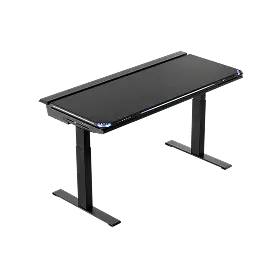
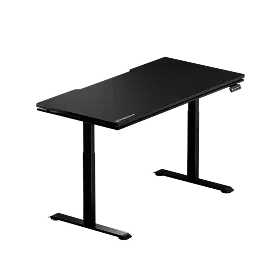
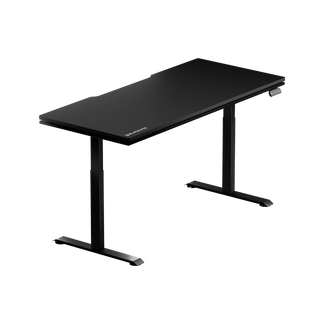
A solid cable management foundation typically combines several tools working together. Under-desk cable trays mount below the surface to hold power strips and cable bundles out of sight. Adhesive cable clips guide individual wires along the edges of the desk. Velcro ties and cable sleeves bundle multiple runs into a single, manageable line. If you're using a height-adjustable standing desk — like Blacklyte's Atlas Desk or Atlas Lite Standing Desk, both of which feature integrated cable management channels — much of this work is already built into the product. For other setups, investing in a dedicated cable management kit is always the right first step.
Key cable management tools to consider:
- Under-desk cable trays — hold power strips and cable bundles out of sight
- Adhesive cable clips — guide individual cables along desk edges and legs
- Velcro cable ties — bundle multiple wires cleanly without permanent commitment
- Cable sleeves — wrap multiple runs into a single tidy line for a professional finish
2. A Monitor Arm (or Quality Monitor Riser)
A monitor arm is arguably the single most ergonomically significant accessory you can add to a gaming desk. The factory stand that ships with most monitors positions the screen at a fixed height that suits almost nobody — too low for most seated users, and incapable of adjusting to a standing position if you're using a sit-stand desk. The result is the most common ergonomic violation in gaming setups: forward head posture, where the chin juts out to compensate for a display that's sitting below natural eye level. That posture loads the cervical spine progressively over hours of play, contributing to the neck stiffness and tension headaches that many gamers dismiss as normal.
A quality monitor arm fixes this by allowing full height, tilt, swivel, and rotation adjustment, letting you precisely align the top of the screen with your eye level from any sitting or standing position. It also reclaims substantial desk space — eliminating the bulky factory stand opens up real estate for your keyboard, mouse surface, and other peripherals. For gamers running dual monitors, a dual monitor arm creates a cohesive multi-screen setup without the mismatched height that standalone stands typically produce. If a full monitor arm isn't in the budget, a monitor riser with storage beneath it is a worthwhile intermediate step that at least brings the screen closer to eye level and adds organized shelf space underneath.
3. An Extended Desk Mat
An extended desk mat — large enough to cover the full width of your keyboard and mouse surface together — is one of the simplest and most effective additions to any setup. For mouse tracking, consistency matters enormously: a uniform, low-friction surface lets you develop reliable muscle memory for aim and movement without the variation of bare wood, glass, or textured plastic. FPS players in particular benefit from a large surface that accommodates wide, sweeping arm movements at low DPI, rather than forcing cramped wrist-only control.
Beyond performance, a quality desk mat protects the desk surface, dampens keyboard noise, and makes the overall setup feel cohesive and intentional. It also keeps wrists from resting on hard desk edges during extended typing sessions — a small thing that adds up considerably over a multi-hour session. For a clean, considered setup, a mat that extends the full width of your usable desk surface is the goal; anything smaller tends to slide, bunch up, or create an awkward transition mid-movement.
4. A Headset Stand or Under-Desk Hanger
A headset that lives on your desk while you're not wearing it takes up more space than you'd expect and tends to slide into cables, interfere with mouse movement, or just end up on the floor. A dedicated headset stand or under-desk magnetic hanger is a simple fix that keeps your headset accessible, protects the headband and ear cushions from unnecessary compression, and frees up meaningful desk space. Under-desk hangers, in particular, are excellent for maintaining a clean surface without adding to the profile of your setup. They keep the headset within arm's reach for Discord calls or quick session starts without intruding on the working area at all.
5. A Smart Power Strip and Outlet Plan
A fully equipped gaming desk draws from more outlets simultaneously than most people anticipate. Two monitors, a PC, powered speakers, a desk lamp, phone chargers, and streaming equipment can exhaust the capacity of a standard wall socket in a hurry. A surge-protected power strip mounted under the desk consolidates every mains run into one organized line, and a model with widely spaced sockets accommodates the bulky power bricks that monitors and audio interfaces tend to ship with. Look for a meaningful joule rating and an integrated switch, so you can cut power to the whole desk at once rather than unplugging devices one by one. Handled this way, a dense setup stays clean without the wall of adapters that characterizes an unmanaged battlestation.
The Nice-to-Haves: Meaningful Upgrades Worth Considering
Once the essentials are in place, these accessories each offer a genuine improvement to comfort, immersion, or workflow — without being strictly necessary for a functional, ergonomic setup. Think of them as the second phase of a well-planned buildout.
Bias Lighting and RGB Strips
RGB desk lighting tends to get written off as a purely aesthetic choice, but the functional case for it is real — particularly when configured as bias lighting behind the monitor. In a dark room, a high-brightness display forces your pupils to constantly oscillate between the bright screen and the dark surroundings, a form of visual fatigue that builds quietly over a session and tends to announce itself as a dull ache behind the eyes or a tension headache by the end. Placing a soft, low-intensity light source behind the monitor raises the ambient light level in your peripheral vision, reducing that contrast shock and keeping your pupils in a more stable, neutral state.
The key word in effective bias lighting is subtle. A bias light running at 10–20% of your monitor's brightness — positioned behind the display and aimed at the wall — creates a soft ambient glow that the eye registers as environmental light rather than a competing source. RGB strips cycling through saturated colors at full brightness achieve the opposite effect, distracting rather than supporting. For best results, a neutral white close to 6500K works most effectively as functional bias lighting; rich colors are better reserved as accent lighting elsewhere in the room, kept well away from the screen. Blacklyte's Atlas Desk features integrated smart lighting with software control via the Atlas Driver, making this kind of precise, purposeful lighting easy to configure without additional hardware.
A Wrist Rest
Wrist rests are worth adding once a solid desk mat is in place, and with an important nuance: a wrist rest is designed to support the heel of your palm during natural pauses in typing or mouse movement — not to prop your wrist up while you're actively pressing keys or moving the mouse. Using a wrist rest continuously during active input keeps the wrist at an extended angle that creates the kind of repetitive strain it's supposed to prevent. Used correctly, however, a quality gel or memory foam wrist rest meaningfully reduces the hard-surface contact that builds up over long sessions and can contribute to discomfort in the forearms and carpal area over time. For keyboard and mouse together, a full-length pad that runs the width of your keyboard is more comfortable and stable than two separate pieces.
An Anti-Fatigue Mat (for Standing Desk Users)
If you're using a height-adjustable desk and actually using the standing position regularly, an anti-fatigue mat is one of the most impactful additions you can make. Standing on a hard floor for extended periods creates static load in the legs, knees, and lower back — the kind of fatigue that sends most people back to sitting well before they've captured the postural benefit of standing. A quality anti-fatigue mat works by encouraging subtle, constant micro-movements in the leg muscles that keep circulation active, making extended standing feel considerably more sustainable. Pairing one with Blacklyte's Atlas Lite Standing Desk or the full Atlas Desk turns the standing position from an occasional novelty into a genuinely comfortable alternative to sitting for portions of your session.
A Desk Organizer or Monitor Riser with Storage
For setups that don't use a monitor arm, a monitor riser with built-in storage beneath it solves two problems at once. It brings the display closer to a natural viewing height and creates organized shelf space for controllers, small peripherals, a DAC, or cable routing. Standalone desk organizers — whether modular drawer units, pegboards, or angled pen-and-device holders — help maintain the clear working surface that makes a setup feel controlled and focused rather than accumulated. There's a genuine ergonomic case here beyond aesthetics: a cluttered surface tends to compress the effective mouse area and push keyboard positioning out of the neutral zone, so keeping the desk organized directly supports your physical posture at the setup.
A Stream Deck or Macro Pad (for Streamers and Power Users)
For gamers who stream, create content, or use their setup for demanding productivity work, a dedicated macro pad or stream deck is a meaningful workflow upgrade. These devices replace complex multi-key combinations with a single physical button press, reducing the mental overhead of managing scene switches, OBS controls, alerts, and media during a live stream. They sit neatly at the edge of a desk, integrate with most major streaming and productivity platforms, and free up cognitive bandwidth that would otherwise go to remembering hotkey sequences. For a purely gaming-focused setup without a production component, a macro pad is a luxury — but for anyone who operates a setup that does double duty as both a gaming station and a content creation workstation, it quickly becomes essential.
The Foundation That Makes Every Accessory Work Better
All of these accessories operate on top of a foundation that needs to be solid to begin with: the desk and chair themselves. A height-adjustable desk is the single most versatile piece of hardware you can add to a setup because it allows every other ergonomic variable — monitor height, keyboard position, forearm angle — to be calibrated to your body rather than forcing your body to adapt. Blacklyte's Atlas desk lineup is built with cable management and a built-in electrical socket already considered on both desks — with the Atlas adding magnetic surface compatibility and smart lighting controls — which means the setup work that other desks leave to third-party accessories is handled at the product level.
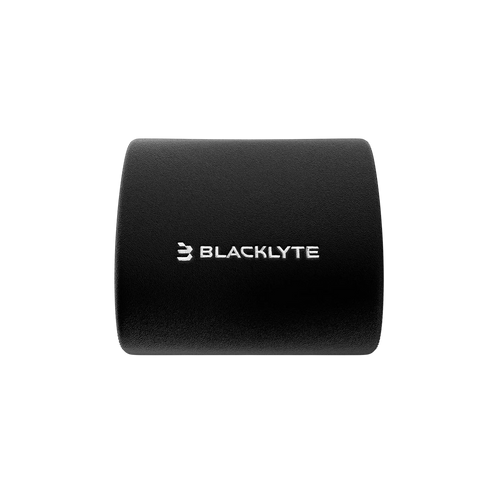
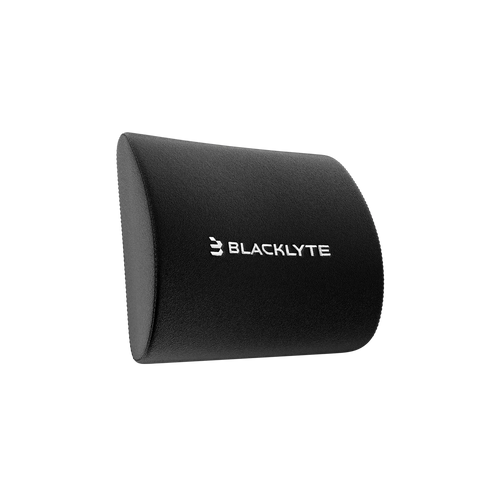
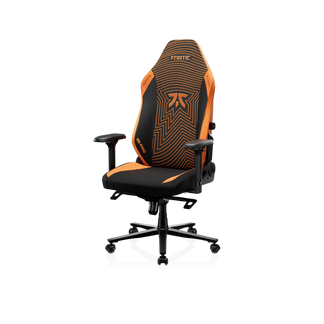
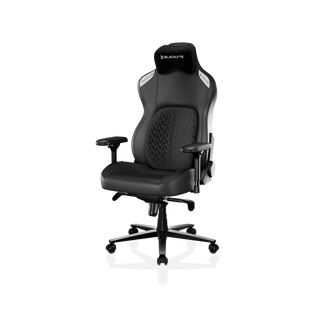
The chair is equally non-negotiable. No amount of monitor arm positioning or wrist rest cushioning compensates for a seat that doesn't support your lumbar curve, fails to adjust to your body dimensions, or puts you at the wrong height for your desk. Blacklyte's gaming chair lineup — the high-end Kraken Pro, the flagship Athena Pro, and the entry-level Athena — features 4D armrests across the full lineup, recline from 90° to 149°, and Class 4 hydraulic gas pistons, with lumbar support that varies by model: a built-in floating lumbar with front-to-back fine-adjust and lock on the Kraken Pro, a built-in 4-way adjustable lumbar on the Athena Pro, and an external lumbar pillow on the Athena. Getting the desk and chair right first creates the stable, calibrated base from which every accessory decision compounds. For a deeper look at how to set up your full workstation ergonomically, Blacklyte's Ergonomics page and the Gaming Hub are worth bookmarking.
How to Build Your Setup in Stages
Very few setups reach their final form all at once, and there's no need to. The smarter approach is to layer additions in order of impact, starting with the items that immediately improve how the setup functions and feels, and adding the upgrades as budget and priorities allow. A useful sequence:
- Stage 1 — Fix the fundamentals: Cable management, extended desk mat, headset hanger. These cost relatively little, take under an hour to implement, and immediately make the desk feel more organized and deliberate.
- Stage 2 — Fix the ergonomics: Monitor arm or riser, correct desk height. These address the physical setup — how your monitor, keyboard, and mouse relate to your body — and make sustained play significantly more comfortable.
- Stage 3 — Enhance the environment: Bias lighting, wrist rest, anti-fatigue mat (if applicable). These are the quality-of-life additions that make long sessions feel sustainable rather than just functional.
- Stage 4 — Specialize for your workflow: Stream deck, desk organizer, PC mount. These are the targeted additions that solve specific problems for specific use cases — streamers, multi-monitor setups, or productivity-heavy users.
Following this sequence means every addition builds on something already solid, rather than layering upgrades onto a setup whose fundamentals are still working against you. The best gaming desk accessory you can own is whichever one solves the most pressing problem you currently have — and that clarity comes from knowing which category you're in before you open your wallet. For a full look at what Blacklyte offers across chairs, desks, and accessories, visit the complete product collection.
Final Thoughts
Building a great gaming desk setup is less about having everything and more about having the right things in the right order. Cable management, a monitor arm, a proper desk mat, a headset solution, and reliable power access form the essential tier — the layer that makes a setup clean, ergonomically sound, and genuinely functional. Bias lighting, a wrist rest, an anti-fatigue mat, and specialized productivity tools are meaningful additions that reward you once the fundamentals are already working. And underneath all of it, a quality desk and chair remain the foundation that determines how well every other decision performs.
Whether you're setting up your first proper battlestation or refining one that's been growing for years, the principle is the same: ergonomics first, aesthetics second, specialization third. Get those layers right, and the sessions get longer, the play gets sharper, and the desk becomes a place you actually want to spend time. Explore Blacklyte's full range of gaming desk accessories, standing desks, and ergonomic gaming chairs to build the complete setup your game deserves.
Not Sure Where to Start?
Our team is here to help you find the right chair, desk, and accessories for your setup — whether you're building from scratch or leveling up what you already have.
Contact Us


